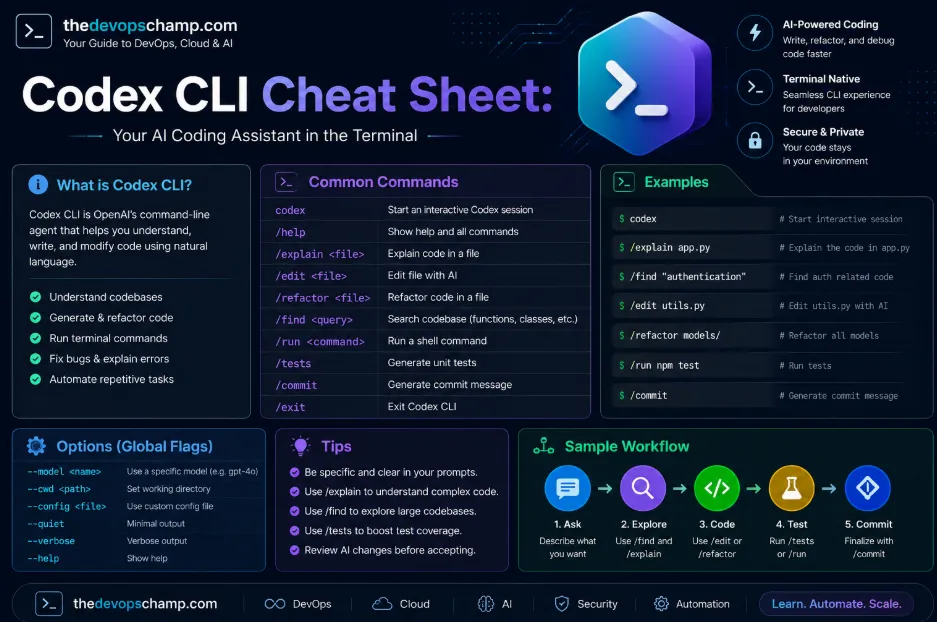
Codex CLI is OpenAI’s terminal-based coding assistant, designed for developers who prefer working from the command line. It can read your project, edit files, run commands, and help manage Git-based workflows while staying inside a sandboxed environment for safer execution.
If you work in Linux, DevOps, cloud, or software engineering, Codex CLI fits naturally into a terminal-first workflow. This cheat sheet breaks down the most useful commands, shortcuts, flags, configuration options, and practical patterns so you can use Codex efficiently without digging through documentation every time.
What Codex CLI Does
Codex CLI is built for interactive and non-interactive coding tasks. You can use it to inspect a codebase, generate changes, review diffs, run tests, and automate repetitive development work from the terminal.
It also supports sandboxed execution, which means commands run inside controlled environments rather than directly on your system. On Linux, that sandboxing uses Bubblewrap, while macOS uses Seatbelt.
Installation
You can install Codex CLI in a few different ways, depending on your setup. The most common method is via npm, while macOS users can also install it through Homebrew.
bash
# Install with npm
npm install -g @openai/codex

# Install with Homebrew on macOS
brew install --cask codex

# Check version
codex --version
After installation, authenticate with either your ChatGPT account or an API key.
bash
# Browser-based login
codex

# API key login
printenv OPENAI_API_KEY | codex login --with-api-key

# Headless login for SSH or servers
codex login --device-auth
Keyboard Shortcuts
Codex CLI includes keyboard shortcuts that make navigation and editing faster in the terminal. These are especially helpful when you are moving quickly through prompts, drafts, and command output.
Ctrl+C: Cancel the current operation; press twice to quit.Ctrl+D: Exit Codex; press twice to force quit.Ctrl+L: Clear the terminal screen.Ctrl+G: Open the prompt in an external editor.Enter: Inject new instructions during execution.Tab: Queue a follow-up prompt while Codex is still working.Esc + Esc: Edit your previous message when the composer is empty.@: Search and attach files with fuzzy file search.!: Run a local shell command directly.
Slash Commands
Slash commands are one of the most useful parts of Codex CLI because they let you control the session without leaving the terminal. You type / to open the command menu, then choose the action you want.
Session control
/clear: Reset the UI and conversation./compact: Summarize the conversation to free token space./new: Start a fresh conversation in the same session./resume: Resume a saved conversation./fork: Clone the current conversation into a new thread./copy: Copy the latest Codex output to the clipboard./diff: Show the Git diff, including untracked files./status: Display session configuration and token usage./exitor/quit: Exit Codex CLI.
Model and behavior
/model: Choose the active model and reasoning level./fast: Toggle fast mode when available./personality: Choose a communication style such as friendly or pragmatic./permissions: Change what Codex can do without asking./theme: Change the terminal syntax highlighting theme./statusline: Configure the footer status bar./experimental: Turn experimental features on or off./debug-config: Print config diagnostics./title: Configure terminal or tab title fields./raw: Toggle raw scrollback mode./vim: Enable or disable Vim-style editing.
Project and workflow tools
/init: Generate anAGENTS.mdscaffold for the project./review: Review the working tree for issues./plan: Switch to plan mode./mention: Attach files or folders to the conversation./mcp: List configured MCP tools./agent: Switch the active agent thread./ps: Show background terminals and output./feedback: Send logs to maintainers./apps: Browse apps/connectors and insert them into the prompt./plugins: Browse installed and available plugins./hooks: View and manage lifecycle hooks./approve: Retry a recent denied action./goal: Set, pause, resume, or clear a persistent task goal./sideor/btw: Start a side conversation./import: Import Claude Code setup and related artifacts./usage: View token usage or rate-limit reset details./logout: Sign out of Codex./sandbox-add-read-dir: Grant extra read access on Windows.
CLI Subcommands
Codex also supports standard subcommands, which are useful for automation and scripting. These are especially important if you want to use Codex in CI/CD pipelines or shell scripts.
codex: Start the interactive TUI session.codex execorcodex e: Run tasks non-interactively.codex review: Run a non-interactive code review.codex resume: Resume a previous session.codex fork: Fork a saved session into a new thread.codex applyorcodex a: Apply the latest diff from a Codex Cloud task.codex login: Manage authentication.codex logout: Remove stored credentials.codex mcp: Manage MCP servers.codex mcp-server: Run Codex as an MCP server.codex sandbox: Run commands inside the Codex sandbox.codex completion: Generate shell completions.codex cloud: Browse and apply Codex Cloud tasks.codex app: Launch the desktop app.codex doctor: Generate a diagnostic report.codex features: List, enable, or disable feature flags.codex execpolicy: Evaluate execpolicy rules.codex update: Check for and apply updates.codex archive: Archive a saved session.codex unarchive: Restore an archived session.codex delete: Permanently delete a saved session.codex plugin: Install, list, or remove plugins.codex remote-control: Ensure app-server remote control is running.codex app-server: Launch the app server for development or debugging.
Useful Flags
Flags let you change Codex behavior without editing config files. These are the ones you’ll likely use most often.
Core flags
-m, --model <MODEL>: Choose the model.-i, --image <FILE>: Attach image files to the prompt.-C, --cd <DIR>: Set the working directory.--add-dir <DIR>: Add extra writable directories.-p, --profile <NAME>: Use a named configuration profile.--search: Enable live web search.--oss: Use a local open-source model.-c, --config <key=value>: Override config.toml values.--version: Show the installed version.
Sandbox and approval flags
-s, --sandbox <MODE>: Chooseread-only,workspace-write, ordanger-full-access.-a, --ask-for-approval <MODE>: Set approval behavior.--full-auto: Auto-approve actions within the sandbox.--yolo: Disable sandboxing and approvals completely.
Non-interactive flags
--json: Output machine-readable JSON.--output-last-message <FILE>: Save the final response to a file.--output-schema <FILE>: Enforce a JSON schema on output.--skip-git-repo-check: Allow execution outside a Git repository.--ignore-rules: Skip execpolicy rules.--ignore-user-config: Ignore your user config file for that run.
Sandbox Modes
Codex supports three sandbox modes, each with a different security level.
ModeAccessNetworkBest forread-onlyRead access onlyDisabledCode review and safe explorationworkspace-writeRead/write in project directoryDisabledEveryday developmentdanger-full-accessFull filesystem accessEnabledAdministrative tasks with caution
For most development work, workspace-write is the safest practical default. If you are doing exploratory work or reviewing code, read-only is usually enough.
Approval Policies
Approval controls when Codex pauses for confirmation before running a command. This matters a lot when the agent is allowed to modify files or execute shell commands.
untrusted: Only safe read commands run automatically.on-request: Codex decides when to ask for approval.never: Codex never asks for approval.
A common safe setup is --sandbox workspace-write --ask-for-approval on-request, which gives you a good balance between productivity and control
Models and Reasoning
Codex supports model selection and reasoning effort settings so you can tune speed versus depth. The reference lists models like gpt-5.4, gpt-5.4-mini, and gpt-5.3-codex.
A practical rule is simple: use a smaller model for quick edits and a stronger model for architecture or debugging. If you are doing large refactors or complex troubleshooting, higher reasoning effort is worth the extra time.
Configuration and AGENTS.md
Codex loads project-specific instructions from AGENTS.md, which works like a repository-level guide for the agent. That file can define build commands, test steps, coding rules, and project conventions.
Configuration lives in config.toml, and the CLI follows precedence rules from CLI flags down to system defaults. That makes it easy to keep shared defaults in config while overriding behavior for one-off sessions.
MCP Servers and Skills
Codex can connect to external tools through MCP servers, which expands what it can do inside a workflow. This is useful if you want it to interact with GitHub, databases, or internal services.
It also includes a skills system that lets you load reusable task-specific behavior. In practice, that means you can build more structured workflows for tasks like code review, documentation, or deployment assistance.
Practical Workflow Tips
A good workflow is to start with /init, set the right model with /model, and keep your repo instructions in AGENTS.md. For longer sessions, use /compact so the conversation stays manageable
For automation, codex exec is the most important command because it turns Codex into a scriptable assistant. In CI/CD or repeatable tasks, pairing codex exec with --json, --output-last-message, or --full-auto can save time.
Conclusion
Codex CLI is more than a simple terminal chatbot. It is a full coding assistant that can read your repository, edit code, run commands, manage sessions, and fit into both interactive and automated workflows.
If you want to make the most of it, focus on three things: learn the slash commands, understand the sandbox and approval settings, and keep your project instructions in AGENTS.md. That combination makes Codex easier to trust, faster to use, and much more effective in real development work.